
Choosing free 2D animation software starts with the kind of movement you want to create. A hand-drawn character, a reusable cutout puppet, and a tiny game sprite require different working methods.
The tools below cover those differences without sending you toward 3D modeling applications. Some prioritize drawing individual frames; others calculate movement between key positions. Matching that approach to your artwork matters more than choosing the application with the longest feature list.
For beginners, frame by frame animation makes timing tangible: draw a pose, add another, and watch the result. More experienced artists may prefer vector tweening, linked parameters, or a production workspace that combines painting and compositing.
These are not interchangeable conveniences. A brush-focused application can be excellent for expressive drawing while feeling cumbersome for reusable motion graphics. Equally, automated interpolation does not replace the observation and posing that make a character convincing.
This selection includes open source animation software alongside a browser-based creative service with optional paid features. Free desktop downloads can coexist with paid store editions, donations, or memberships, so use the linked source rather than assuming every distribution channel costs the same.
Before committing a project, test the drawing experience, save a native file, and export a short sample. That small trial reveals hardware limitations and delivery problems before you have built an entire scene.
Quick picks at a glance
| # | Resource | License | Best for |
|---|---|---|---|
| 1 | Pencil2D | Free, open source; commercial use permitted | Learning hand-drawn animation without a crowded interface |
| 2 | OpenToonz | Free for commercial and noncommercial use; BSD source | Combining traditional drawings with production compositing tools |
| 3 | Synfig Studio | Free and open source; GPL v3 | Animating reusable vector artwork with calculated inbetweens |
| 4 | Krita | Free and open source; GPL v3; paid store editions optional | Painting expressive frame-by-frame scenes with familiar brushes |
| 5 | Tahoma2D | Free and open-source software | Exploring a simplified production-oriented animation workspace |
| 6 | Friction | Free and open source; GPL v3 | Creating vector motion graphics for web and video |
| 7 | enve | Free and open source; GPL v3 | Experimenting with legacy vector and raster animation workflows |
| 8 | Wick Editor | Free and open source; GPL v3 | Combining drawn animation with interactive multimedia experiments |
| 9 | Pixelorama | Free and open source; MIT license; optional donations | Animating pixel-art sprites and small game assets |
| 10 | Brush Ninja | Free browser tools; optional paid membership unlocks additional features | Trying simple drawn loops before installing desktop software |
Pencil2D
Desktop app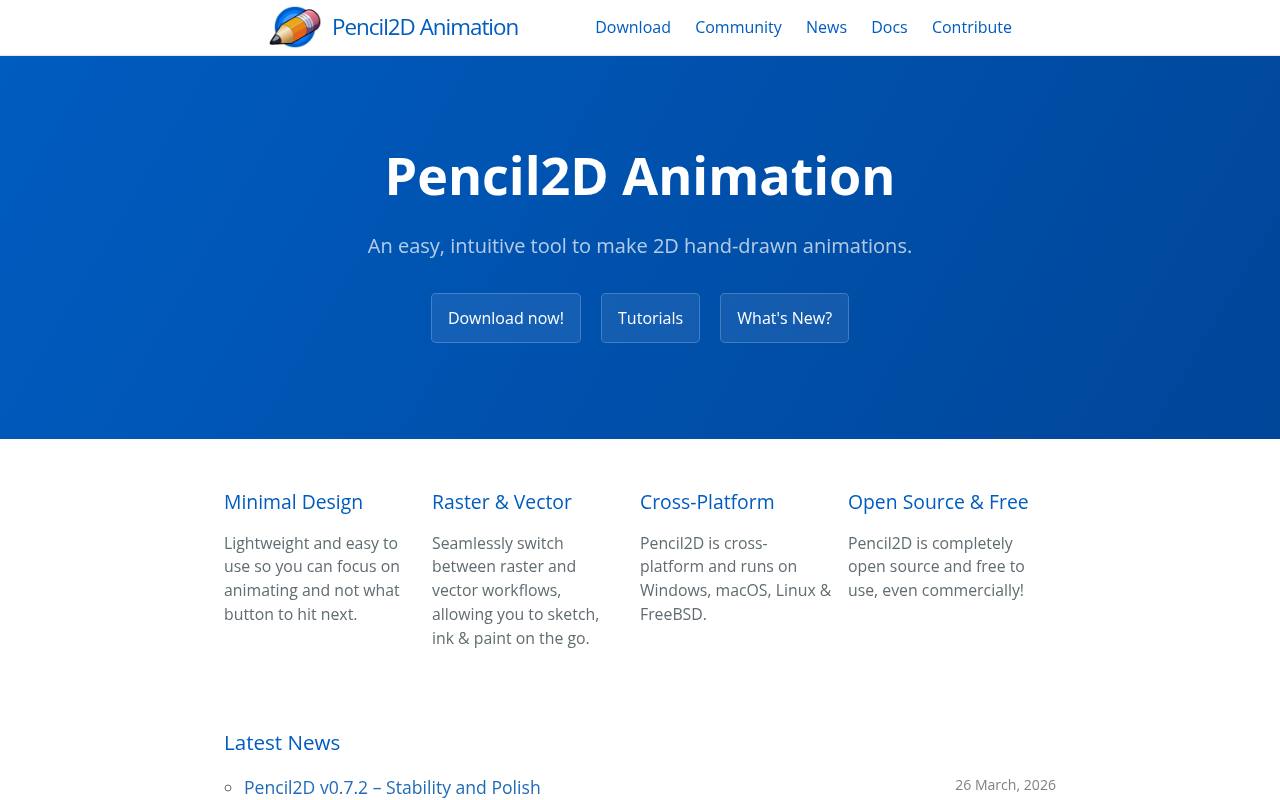
Pencil2D concentrates on hand drawn animation with a deliberately minimal interface. Its official site emphasizes switching between raster and vector workflows, which lets you explore different drawing approaches without choosing a separate application immediately. Downloads cover Windows, macOS, Linux, and FreeBSD.
The project explicitly permits commercial use and describes the software as completely free and open source. Choose this free animation software when your immediate goal is understanding poses and timing rather than navigating a large production environment. The site also links tutorials, documentation, and community support.
- Type
- Desktop app
- Best for
- Learning hand-drawn animation without a crowded interface
- License
- Free, open source; commercial use permitted
- Price
- 100% free
OpenToonz
Desktop app
OpenToonz brings production animation tools to a free application rooted in the Toonz workflow adapted by Studio Ghibli. Its official feature list includes raster and vector images, palette-based painting, a timeline and exposure sheet, and node-based effects compositing.
That combination suits artists who want to move beyond isolated sketches into organized scene production. The separate GTS scanning tool is Windows-only, a useful distinction if digitizing paper drawings is central to your process. Commercial animation projects are explicitly allowed without a software fee, although the workspace rewards patient learning.
- Type
- Desktop app
- Best for
- Combining traditional drawings with production compositing tools
- License
- Free for commercial and noncommercial use; BSD source
- Price
- 100% free
Synfig Studio
Desktop app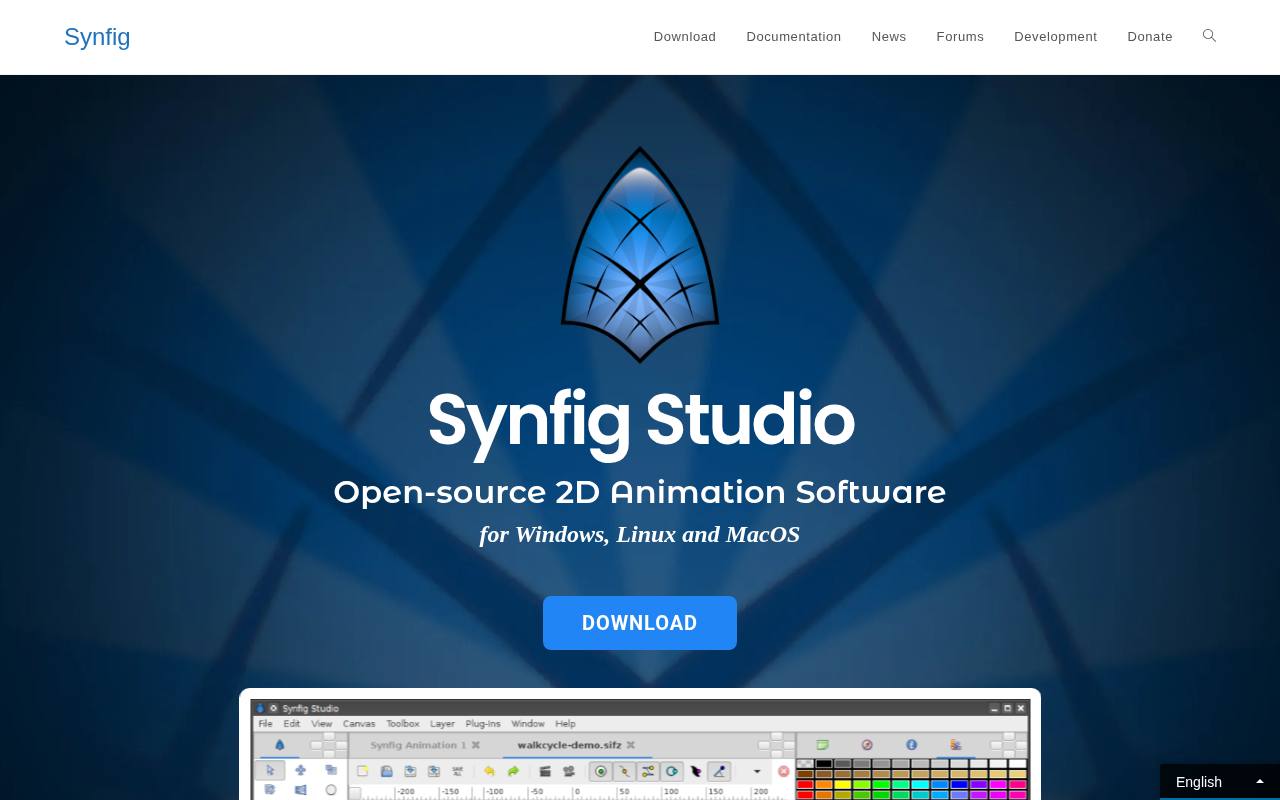
Synfig Studio is built around vector tweening rather than requiring a new drawing for every frame. Set key positions and the software calculates intermediate states; its bone system also supports cutout animation and deformation of bitmap artwork.
The official site describes geometric, gradient, filter, distortion, and transformation layers, plus controls for linking parameters. These features make it a distinctive choice for free cutout animation and reusable graphic elements. Windows, Linux, and macOS builds are offered in stable and development editions; beginners should generally start with the stable branch.
- Type
- Desktop app
- Best for
- Animating reusable vector artwork with calculated inbetweens
- License
- Free and open source; GPL v3
- Price
- 100% free
Krita
Desktop app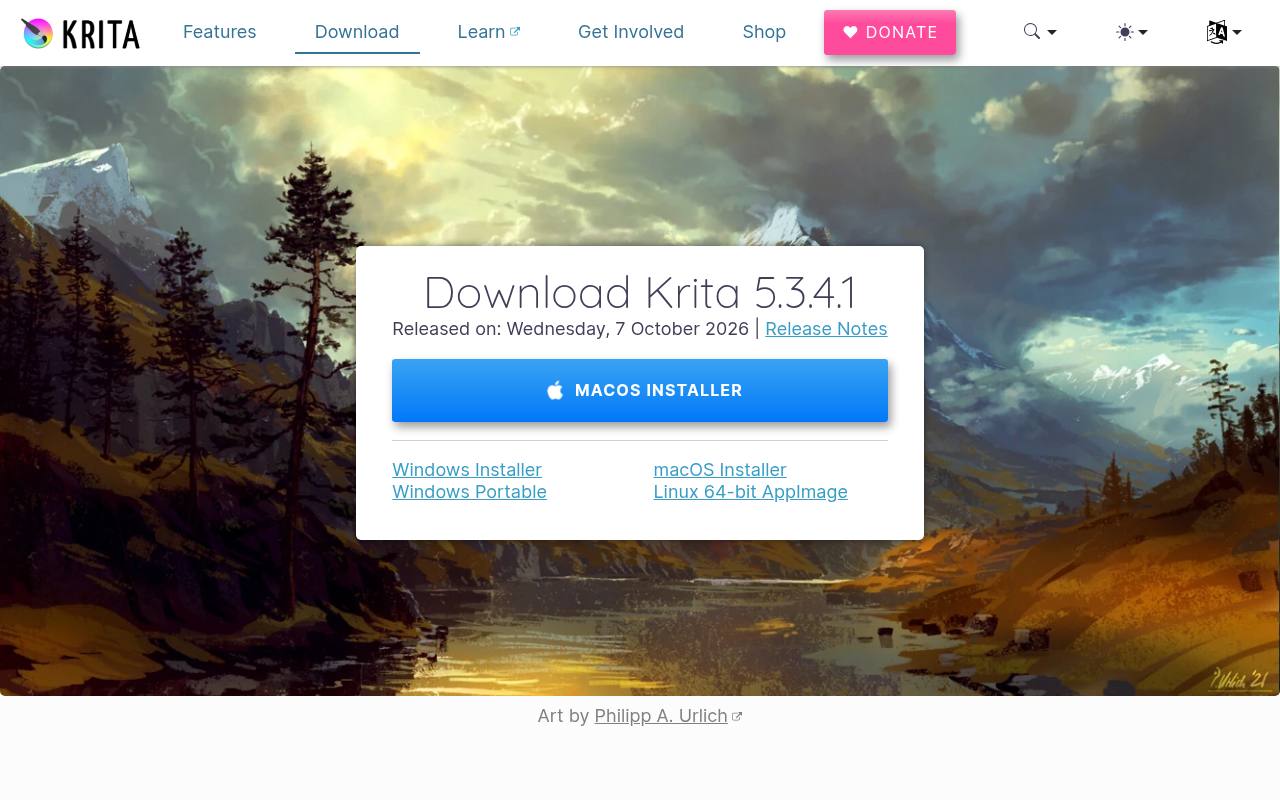
Krita pairs a digital painting environment with raster animation tools. Its animation workspace exposes a timeline, onion-skin controls, animation curves, and a storyboard docker, making it attractive to illustrators who want their existing drawing habits to carry into motion.
The manual also cautions that frames occupy memory, so short shots and sensible canvas dimensions are important. Get the free desktop download directly from Krita’s site; separately offered store editions are paid support channels. For longer productions, plan to assemble shots in a video editor rather than treating Krita as a complete editing suite.
- Type
- Desktop app
- Best for
- Painting expressive frame-by-frame scenes with familiar brushes
- License
- Free and open source; GPL v3; paid store editions optional
- Price
- 100% free
Tahoma2D
Desktop app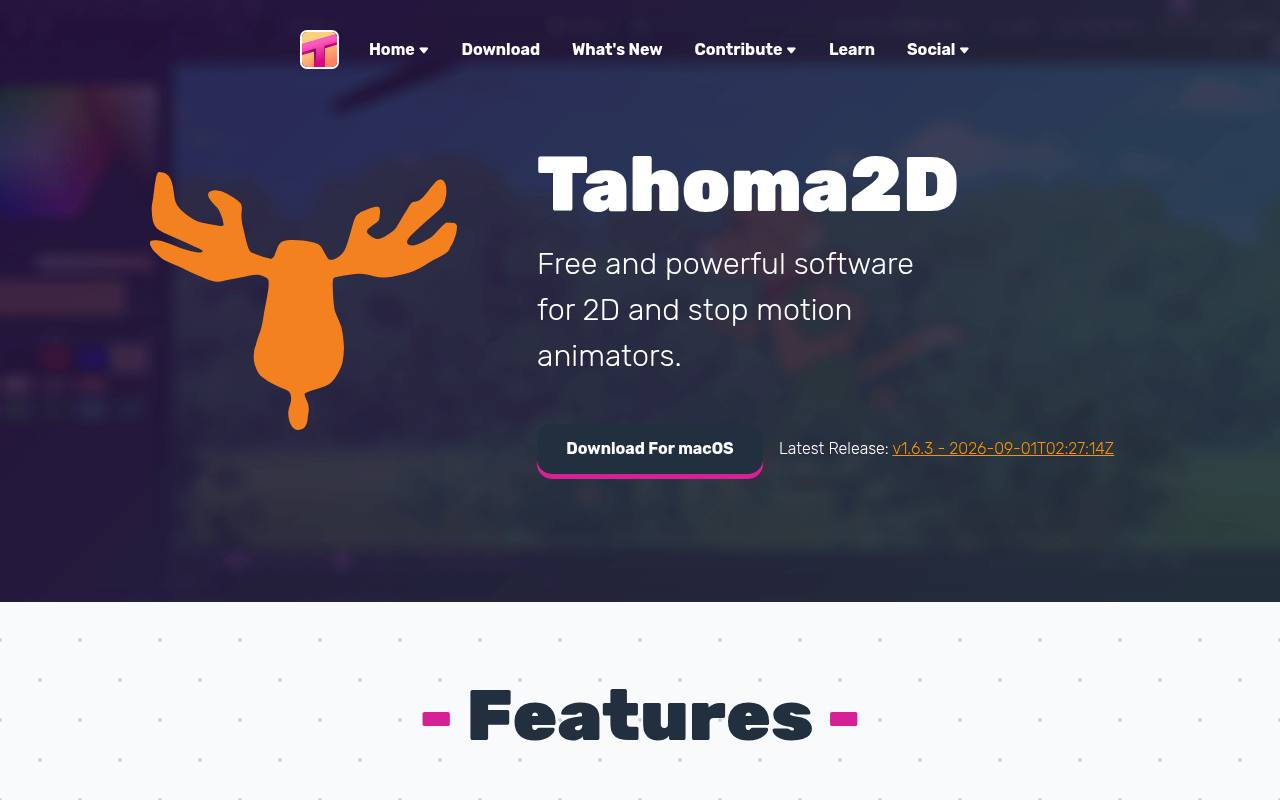
Tahoma2D combines 2D drawing animation with cutout and stop-motion capabilities in a workspace developed from OpenToonz. Its own comparison highlights simpler project management, style-set management, timeline folders, and implicit holds that keep a drawing visible until the next image or a defined endpoint.
The site also lists Rhubarb-based automated lip-syncing, brushes, palettes, and special effects. A practical advantage for animation export workflows is built-in support for common formats such as MP4 and GIF without installing extra libraries. Check the published operating-system requirements before downloading, especially on older Macs.
- Type
- Desktop app
- Best for
- Exploring a simplified production-oriented animation workspace
- License
- Free and open-source software
- Price
- 100% free
Friction
Desktop app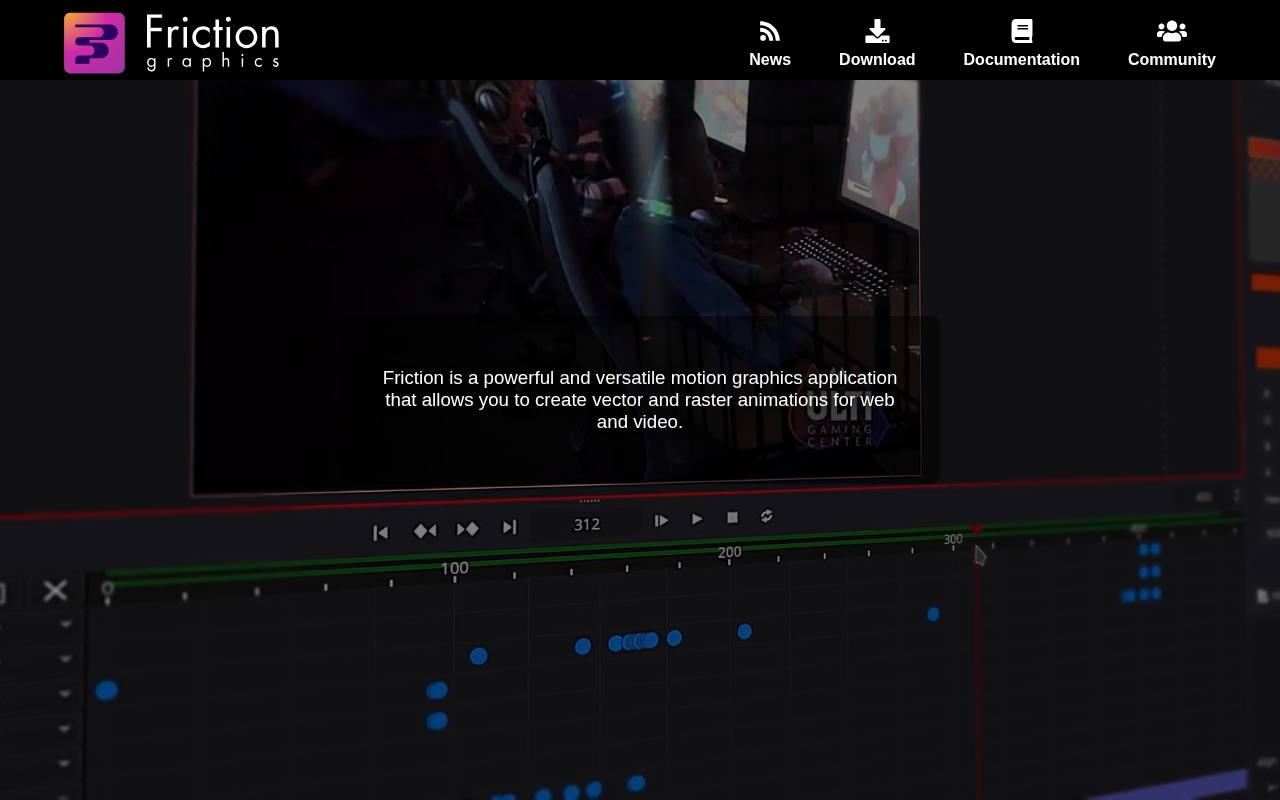
Friction focuses on vector motion graphics and raster animation rather than traditional drawing alone. Its official features include multiple scenes, viewers, timelines, and graphs, giving more experienced users room to organize complex compositions. An ECMAScript expression editor adds syntax highlighting, autocompletion, and custom functions for parameter-driven work.
Friction can also create animated SVG using SMIL, making animated vector exports a specific reason to investigate it. Downloads are available for Windows, Linux, and macOS. User-customizable shader effects are described as experimental, so treat that area as exploratory rather than a production guarantee.
- Type
- Desktop app
- Best for
- Creating vector motion graphics for web and video
- License
- Free and open source; GPL v3
- Price
- 100% free
enve
Desktop app
enve is an open source animator for vector and raster work, with support for bringing sound and video into projects. The official site links documentation, downloads, shader effects, and its Xev specification, giving technically curious artists several entry points. Its repository provides Linux and Windows releases and identifies the GPL license.
One important qualification is that the repository is archived, so this is a legacy animation option, not the strongest choice when ongoing maintenance is essential. Try it for experimentation or existing projects, and test compatibility carefully before choosing it for a deadline.
- Type
- Desktop app
- Best for
- Experimenting with legacy vector and raster animation workflows
- License
- Free and open source; GPL v3
- Price
- 100% free
Wick Editor
Web app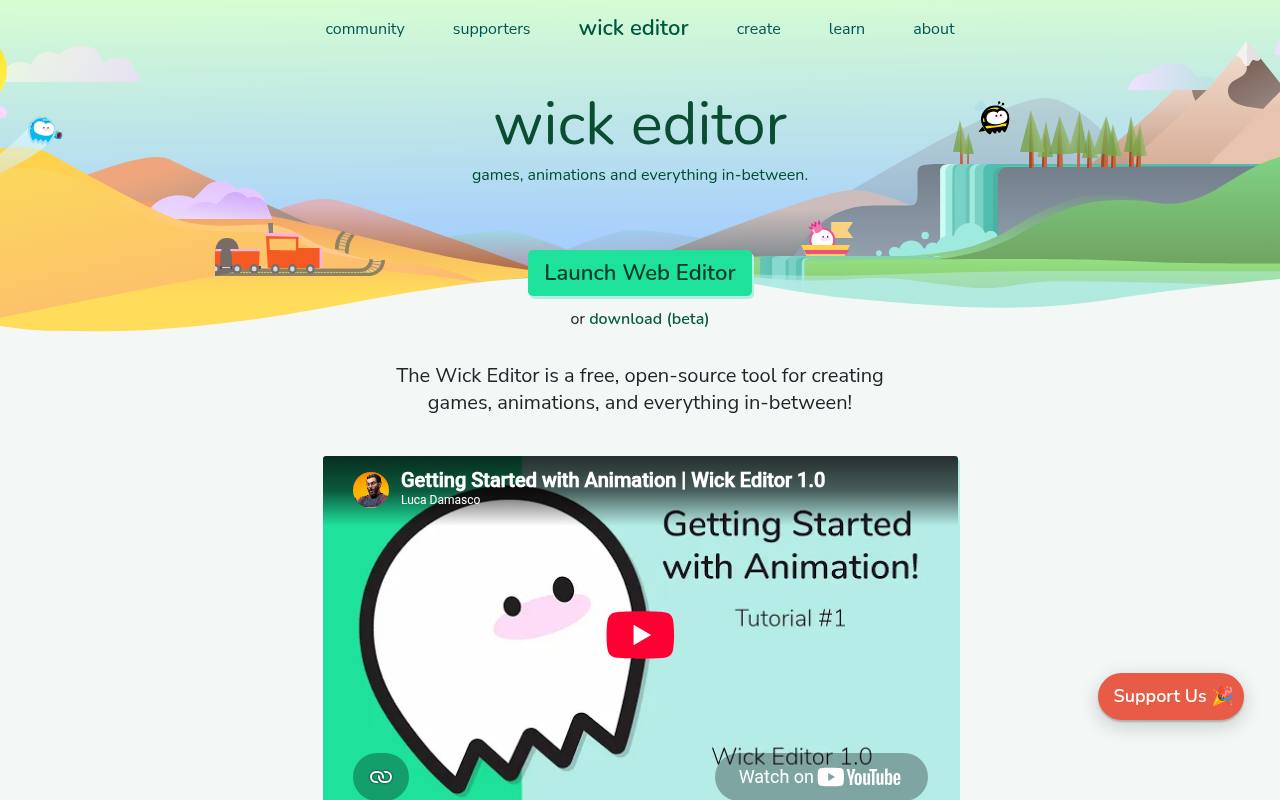
Wick Editor describes itself as a free, open-source tool for games, animations, and the territory between them. That emphasis makes interactive animation projects its distinguishing angle: it is worth exploring when a piece should become an experience rather than only a rendered clip.
The public source repository identifies a GPL license and documents running the editor locally for developers. Its website requires JavaScript, so browser restrictions can matter in classrooms or managed environments. Consider this browser animation tool for creative multimedia experiments, while checking your intended delivery method early.
- Type
- Web app
- Best for
- Combining drawn animation with interactive multimedia experiments
- License
- Free and open source; GPL v3
- Price
- 100% free
Pixelorama
Desktop and web app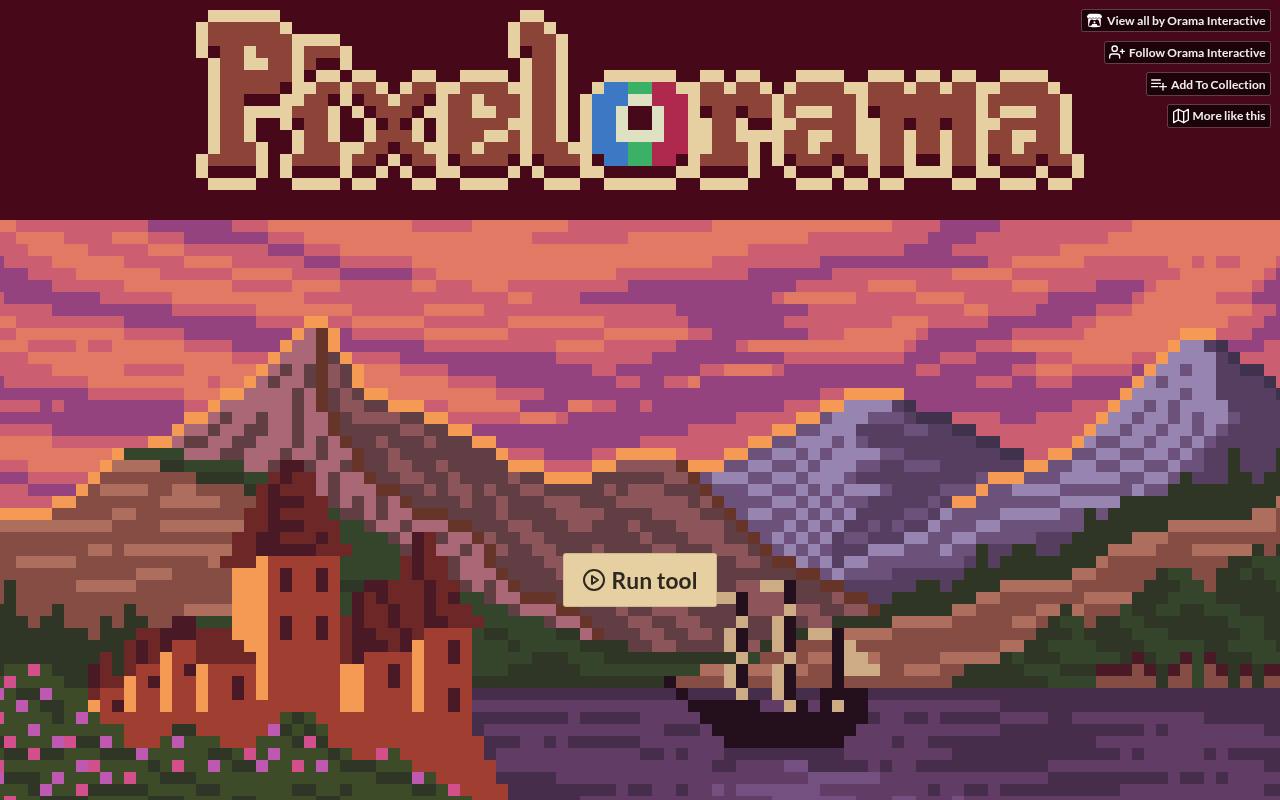
Pixelorama specializes in pixel art animation, with a layered timeline, onion skinning, frame tags, and audio synchronization. Its official download page also lists palette management, tilemap layers, indexed mode, and algorithms tailored to pixel-art scaling and rotation.
Export options include spritesheets, GIF, animated PNG, and video, making it useful for game artwork as well as standalone loops. The free sprite editor is MIT-licensed and offered through an optional-payment download page. An experimental Android build is also listed, but the publisher cautions that the experience is better suited to tablets than phones.
- Type
- Desktop and web app
- Best for
- Animating pixel-art sprites and small game assets
- License
- Free and open source; MIT license; optional donations
- Price
- 100% free
Brush Ninja
Web app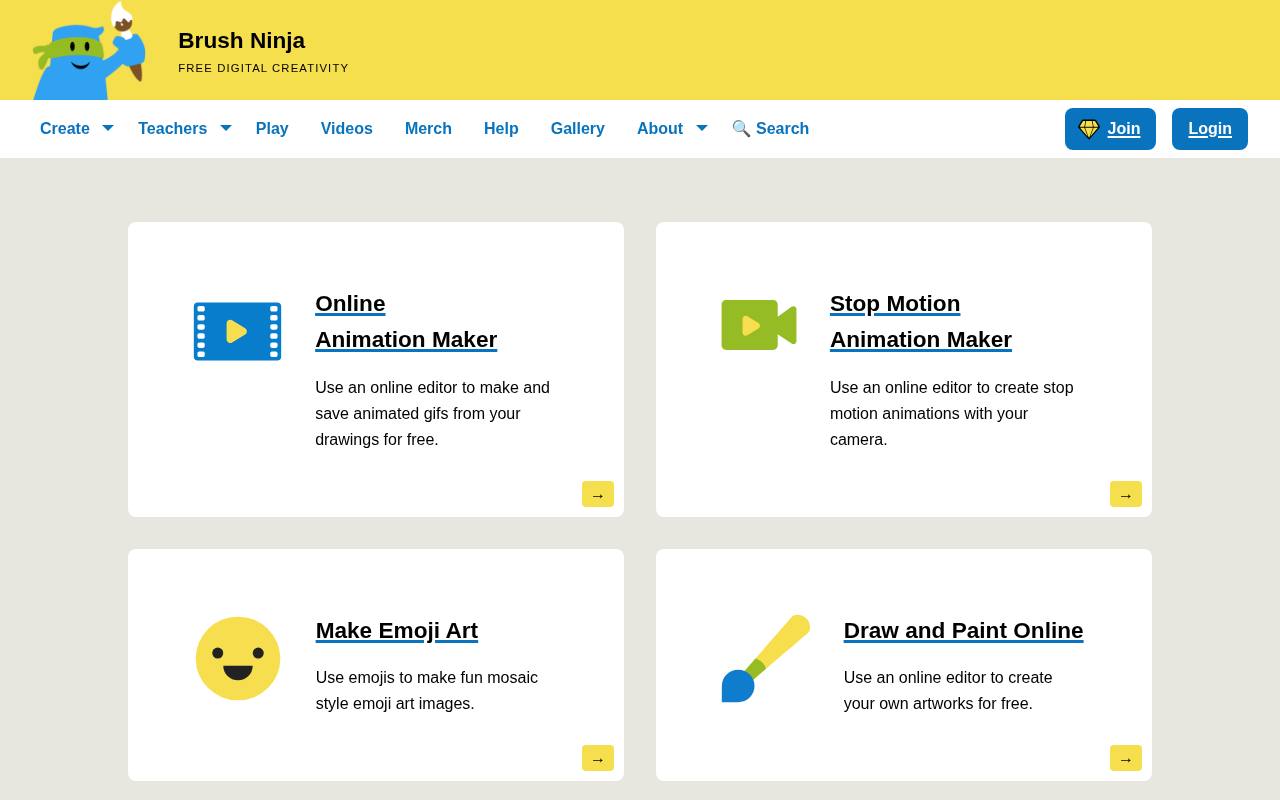
Brush Ninja offers an approachable online animation maker within a collection of browser-based creative tools. Its Create page specifically advertises drawing and saving animated GIFs for free, alongside separate stop-motion, painting, collage, and other creative utilities. This makes it useful for quick visual exercises when installing a desktop application would add unnecessary friction.
The site also promotes a membership to unlock additional features, so distinguish the free drawing workflow from premium extras. Start with a short loop and confirm the available export and editing controls before planning a larger classroom activity.
- Type
- Web app
- Best for
- Trying simple drawn loops before installing desktop software
- License
- Free browser tools; optional paid membership unlocks additional features
- Price
- Free + Pro
Choose drawing or tweening first
With free animation tools, workflow fit is more important than prestige. Pick Pencil2D or Krita if drawing successive poses is the point of the exercise. Investigate Synfig when you want to reuse artwork through calculated motion. OpenToonz and Tahoma2D suit broader scene production, while Pixelorama belongs on the shortlist for deliberately pixel-based work.
Make a small compatibility test
Before moving real artwork, create a short test scene with several layers and a few seconds of motion. Save, close, reopen, and export it on the computer you will actually use. Test your tablet pressure and display scaling too. Successful installation alone does not establish that a particular drawing setup will feel comfortable.
Separate project files from delivery files
Your editable animation project preserves the structure needed for revisions. A rendered video or GIF usually does not. Keep the native file, source artwork, and any imported audio together in an organized project folder. Export a sample in the recipient’s required format early, especially when moving between an animation application and a separate video editor.
Understand software and artwork rights
A free software license governs the application, not every image or sound you import. Open-source licensing generally does not mean you must release your original rendered film under that same license. However, redistributing modified software involves different obligations. Review third-party brushes, fonts, music, and character assets independently before delivering a commercial animation.
Control memory and production scope
Start with manageable animation scenes rather than a long, high-resolution sequence. Krita’s documentation explicitly discusses the memory cost of storing frames, but the wider lesson applies to planning any project: establish timing in rough form, then refine the drawing.
Save milestone versions and keep backups outside the working folder so a single damaged file cannot erase every revision.
Can free software support professional work?
Yes, professional 2D animation depends on the production requirements rather than a price tag alone. OpenToonz explicitly allows commercial projects, and several other options offer substantial open-source toolsets.
What matters is whether the chosen application meets your pipeline, support, and export needs. For client work, favor tested builds and documented handoff procedures over unfamiliar experimental features.
Practice timing before adding detail
A simple bouncing ball is a useful first assignment because it isolates spacing, acceleration, and contact without requiring a finished character design. Make two versions with different timing and compare their weight. Then try a blinking face or waving hand.
These small exercises reveal whether you prefer drawing new frames or adjusting reusable shapes. Keep the artwork rough until the movement reads clearly at normal playback speed. Once the timing works, add color and texture in a separate pass rather than polishing frames you may later remove.