
A convincing cutout depends on more than making the background disappear. Hair needs soft transitions, product edges need definition, and the downloaded file needs enough pixels for its destination.
These free background remover tools help isolate subjects from photographs you already own. Unlike libraries of ready-made transparent images, they process your source pictures, giving you control over the person, object, or animal that appears in the finished composition.
The biggest differences often appear at export. A service can accept a large photograph but provide only a small free preview, while another preserves the original dimensions on your own computer.
This selection distinguishes free export resolution from upload limits and model working sizes. Where a provider does not publish a numerical output ceiling, that uncertainty is stated rather than replaced with an unsupported promise of unlimited high-resolution downloads.
Start with one representative image before committing to a workflow. Test a portrait with loose hair, a product with narrow gaps, or another subject that resembles your actual workload.
Compare the transparent PNG cutout on both light and dark backgrounds, then inspect the file dimensions. You will find quick web tools below alongside open-source options for local processing, plus practical considerations around commercial permissions, privacy, batch work, and edge refinement.
Quick picks at a glance
| # | Resource | License | Best for |
|---|---|---|---|
| 1 | rembg | MIT code; model licenses vary | Local automation and repeatable folder-based cutout workflows |
| 2 | Photopea | Free editor; optional Premium subscription | Correcting automatic selections with layers and manual tools |
| 3 | GIMP | Free, open-source GPL software | Precise manual masks for difficult product edges |
| 4 | Pixlr | Free tool under Pixlr terms; paid products optional | Batch cutouts with accessible brush and lasso corrections |
| 5 | Removal.AI | Free previews for personal use; commercial/HD plans paid | Small personal-use previews before considering paid exports |
| 6 | Adobe Firefly | Free account allowance under Adobe terms; paid plans optional | Occasional cutouts within an Adobe editing workflow |
| 7 | Photoroom | Free plan for personal, non-commercial use; paid plans optional | Personal cutouts with clearly documented platform export limits |
| 8 | Clipout | Free; commercial use permitted for images you can lawfully use | Private full-size cutouts with a published megapixel ceiling |
| 9 | Cutaway | Free; personal and commercial exports permitted | Unlimited local cutouts with framing and edge adjustments |
| 10 | bgcut | MIT implementation; check model and dependency terms | Local cutouts shared across browser and developer workflows |
rembg
Open-source software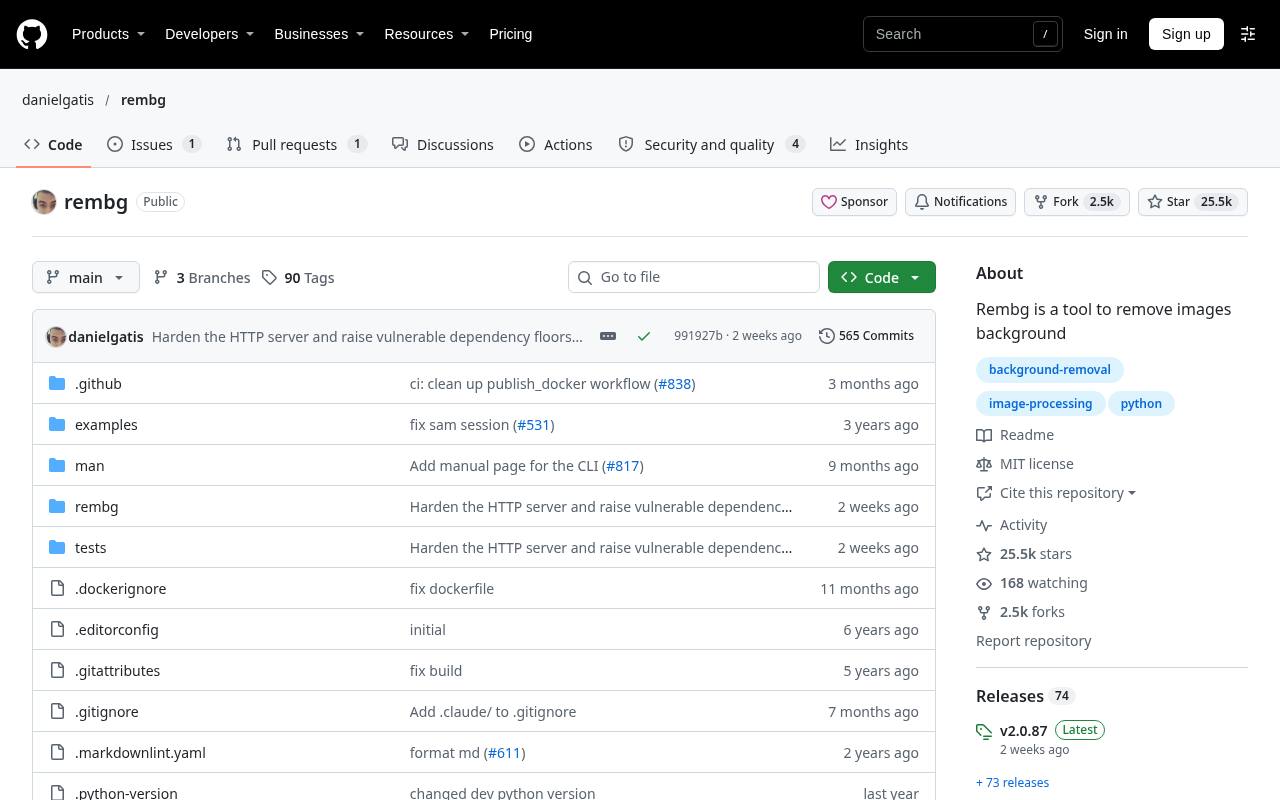
rembg brings open-source background removal to a command line, Python library, local HTTP server, or Docker workflow. Its local models avoid per-image credits and a paid export-resolution tier; practical image sizes depend on memory and the selected processing path.
Folder processing makes it useful for repeatable catalog preparation once installation is complete. The MIT software license does not automatically cover every downloadable model: check each model’s terms, especially options with commercial restrictions. Choose local models rather than optional remote API integrations when you want processing to stay on your machine.
- Type
- Open-source software
- Best for
- Local automation and repeatable folder-based cutout workflows
- License
- MIT code; model licenses vary
- Price
- 100% free
Photopea
Browser image editor
Photopea combines a free browser editor with Select > Remove BG and the more interactive Magic Cut tool. Magic Cut uses green marks for the subject and red marks for the background, with a border setting for softer transitions.
Export the result through File > Export As > PNG, and retain a layered working file when more changes are likely. There is no paid export-resolution tier for ordinary PNG export; browser memory remains a practical constraint. Its editing controls make it particularly useful when an automatic result needs targeted repairs rather than another full processing attempt.
- Type
- Browser image editor
- Best for
- Correcting automatic selections with layers and manual tools
- License
- Free editor; optional Premium subscription
- Price
- Free + Pro
GIMP
Desktop image editor
GIMP is a free desktop alternative when you need manual background removal rather than a dedicated upload-and-download service. Foreground Select, paths, selections, and layer masks let you separate subjects and repair difficult boundaries without purchasing export credits. Add transparency and export PNG after checking the mask.
There is no subscription resolution cap: image size is constrained by available resources instead. Installation and selection work take more effort than a one-click website, but the editable project is valuable for packaging, overlapping objects, and other scenes where automatic segmentation removes the wrong detail.
- Type
- Desktop image editor
- Best for
- Precise manual masks for difficult product edges
- License
- Free, open-source GPL software
- Price
- 100% free
Pixlr
Web app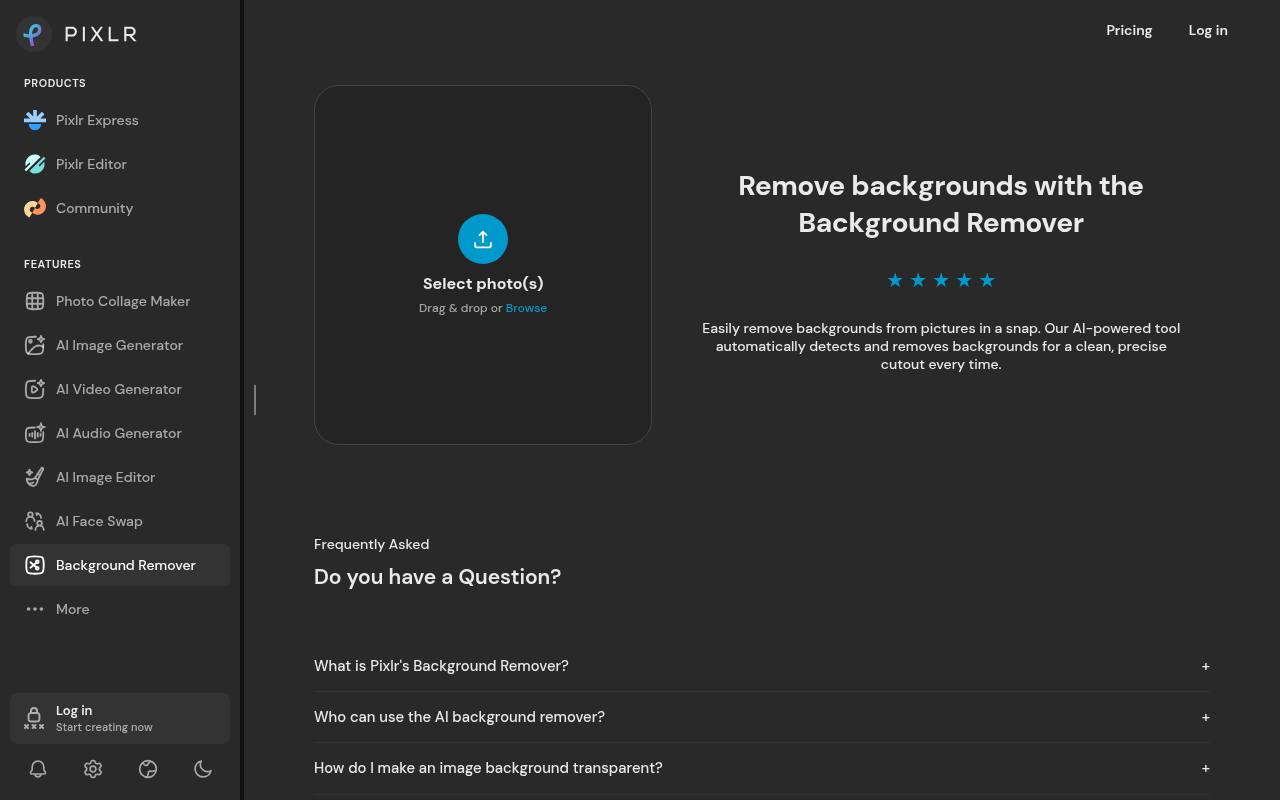
Pixlr’s dedicated Remove BG workflow handles automatic isolation and offers Fine Tune controls for corrections using Draw, Magic, and Lasso. You can choose transparency, white, or black, then save individual PNG files or a ZIP of multiple results.
Its background-removal information page states a 4096 × 4096 processing maximum; that is not a promise that larger originals survive unchanged. The dedicated tool is advertised as free, while other Pixlr products have separate plans. Use its correction tools to restore thin handles or erase leftover gaps before exporting a batch.
- Type
- Web app
- Best for
- Batch cutouts with accessible brush and lasso corrections
- License
- Free tool under Pixlr terms; paid products optional
- Price
- Free + Pro
Removal.AI
Web app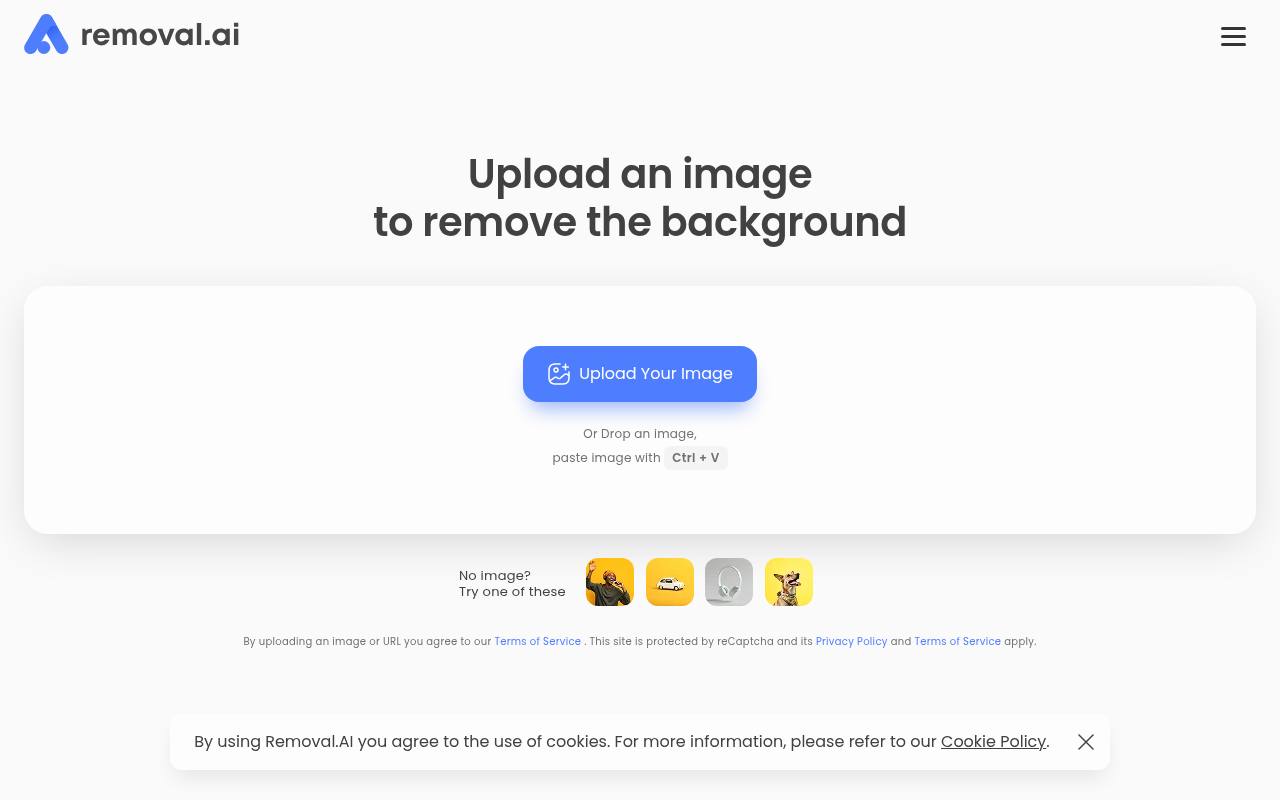
Removal.AI offers unlimited free preview downloads, but its pricing FAQ limits the free offering to low-resolution images and personal use. The stated ceiling is 0.25 megapixels, roughly 250,000 pixels: 625 × 400 is one example, not a fixed output shape.
Higher-resolution downloads require credits, and signup includes one high-resolution download rather than a continuing free HD allowance. This makes the service suitable for small personal compositions and evaluating separation quality. Check its commercial plans before using a preview in client work, advertising, or a shop listing.
- Type
- Web app
- Best for
- Small personal-use previews before considering paid exports
- License
- Free previews for personal use; commercial/HD plans paid
- Price
- Free tier
Adobe Firefly
Web app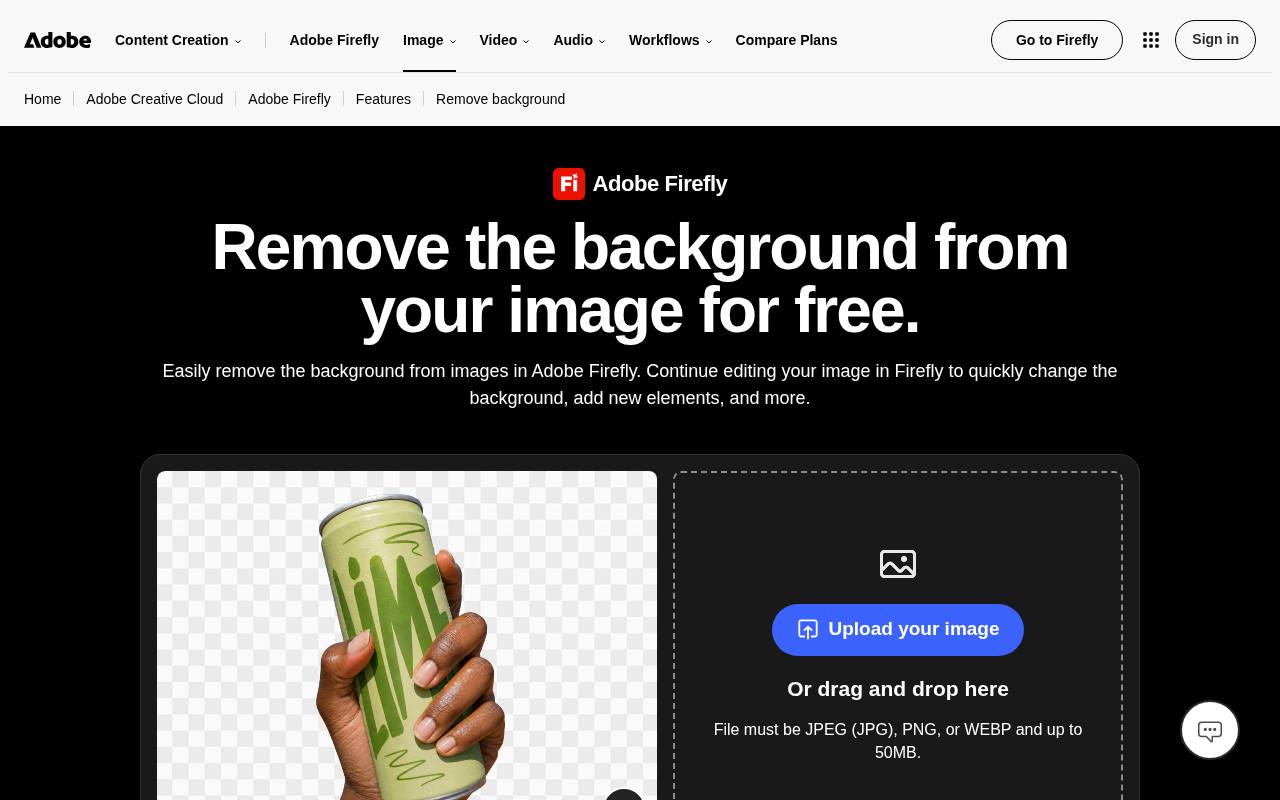
Adobe Firefly’s background-removal page offers transparent cutout downloads and connects the result to further image editing. An Adobe account is required, and the page says free users receive daily generations that can be used for background removal.
It does not state a fixed numerical free output-resolution ceiling or a universal daily count there, so verify both in the signed-in interface. Do not confuse this with unlimited free processing. Choose it for occasional work within Adobe’s ecosystem, and check the downloaded dimensions before planning a large print or full-width hero image.
- Type
- Web app
- Best for
- Occasional cutouts within an Adobe editing workflow
- License
- Free account allowance under Adobe terms; paid plans optional
- Price
- Free tier
Photoroom
Web and mobile app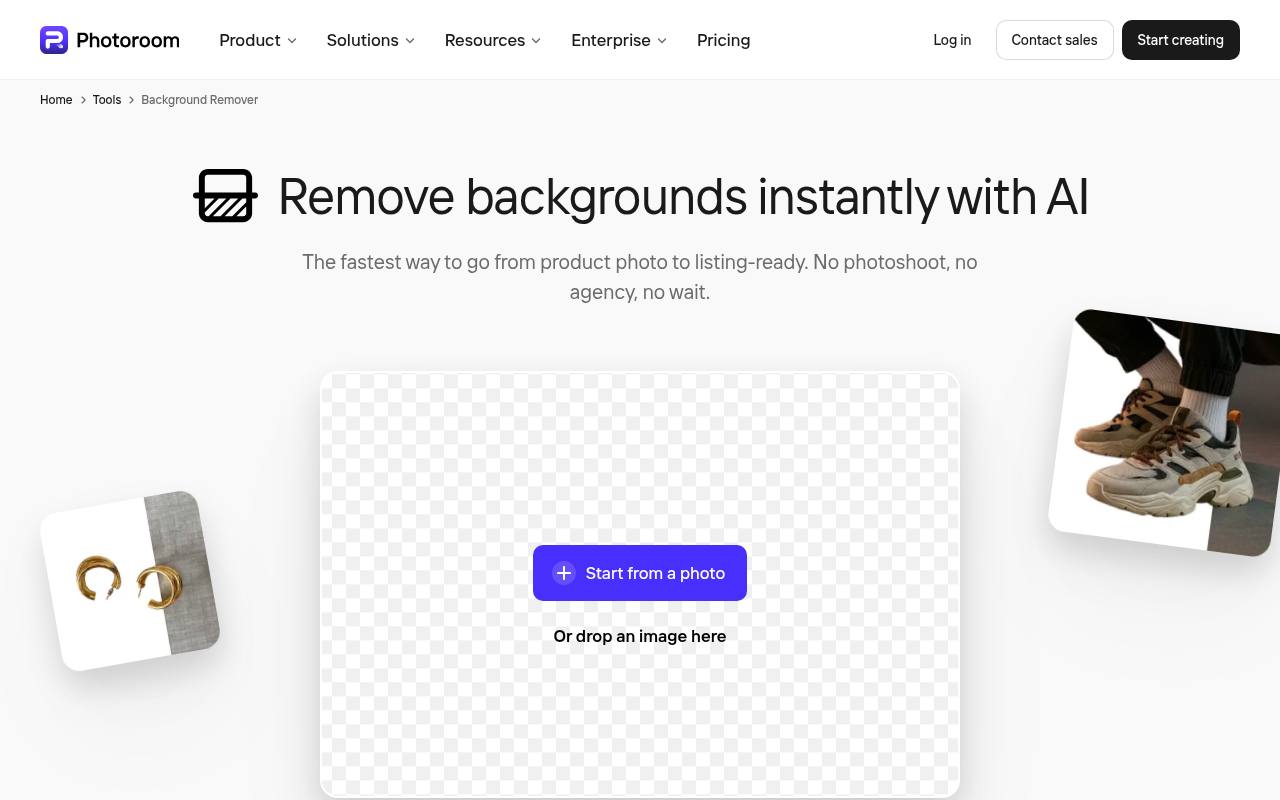
Photoroom separates subjects automatically and provides a useful example of platform-specific export limits. Its free web plan caps the longest side at 2,000 pixels, reducing larger images proportionally. The documented free limits differ on mobile: up to 2400 × 2400 on iOS and 4032 × 4032 on Android.
Its plan documentation reserves the free plan for personal use, not commercial projects, and export allowances also apply. Check the current Space allowance before a large session. For free business assets, prefer an alternative whose terms permit your intended use.
- Type
- Web and mobile app
- Best for
- Personal cutouts with clearly documented platform export limits
- License
- Free plan for personal, non-commercial use; paid plans optional
- Price
- Free tier
Clipout
Local browser app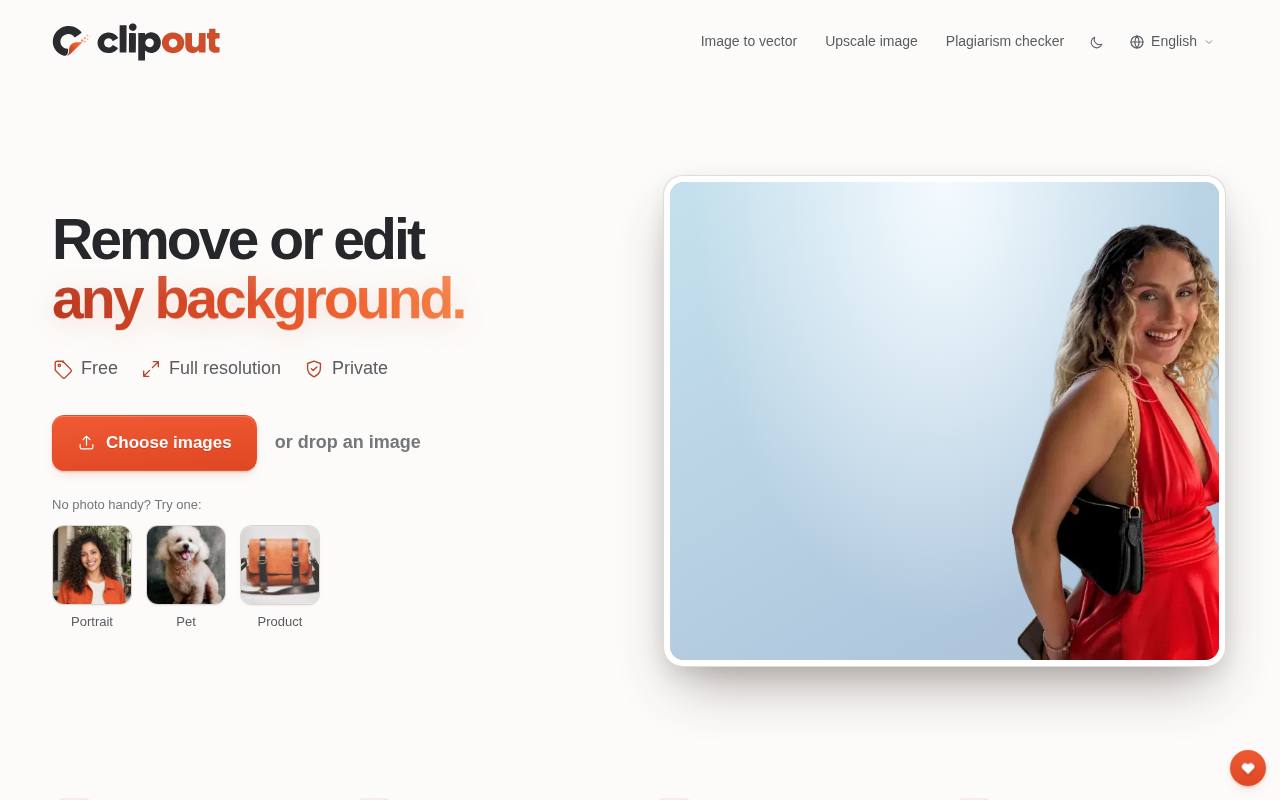
Clipout runs background removal locally in the browser and exports original-size transparent PNGs within explicit device limits. Its FAQ specifies up to 32 megapixels and 8,192 pixels on the longest side on computers, or 12 megapixels on phones; larger inputs are reduced.
Batch mode accepts up to 50 images and offers ZIP downloads. A touch-up brush restores missing details or removes leftovers, while edge refinement targets color fringing. The site states there are no credits, accounts, watermarks, or daily limits, and permits commercial use while leaving responsibility for image rights with you.
- Type
- Local browser app
- Best for
- Private full-size cutouts with a published megapixel ceiling
- License
- Free; commercial use permitted for images you can lawfully use
- Price
- 100% free
Cutaway
Local browser app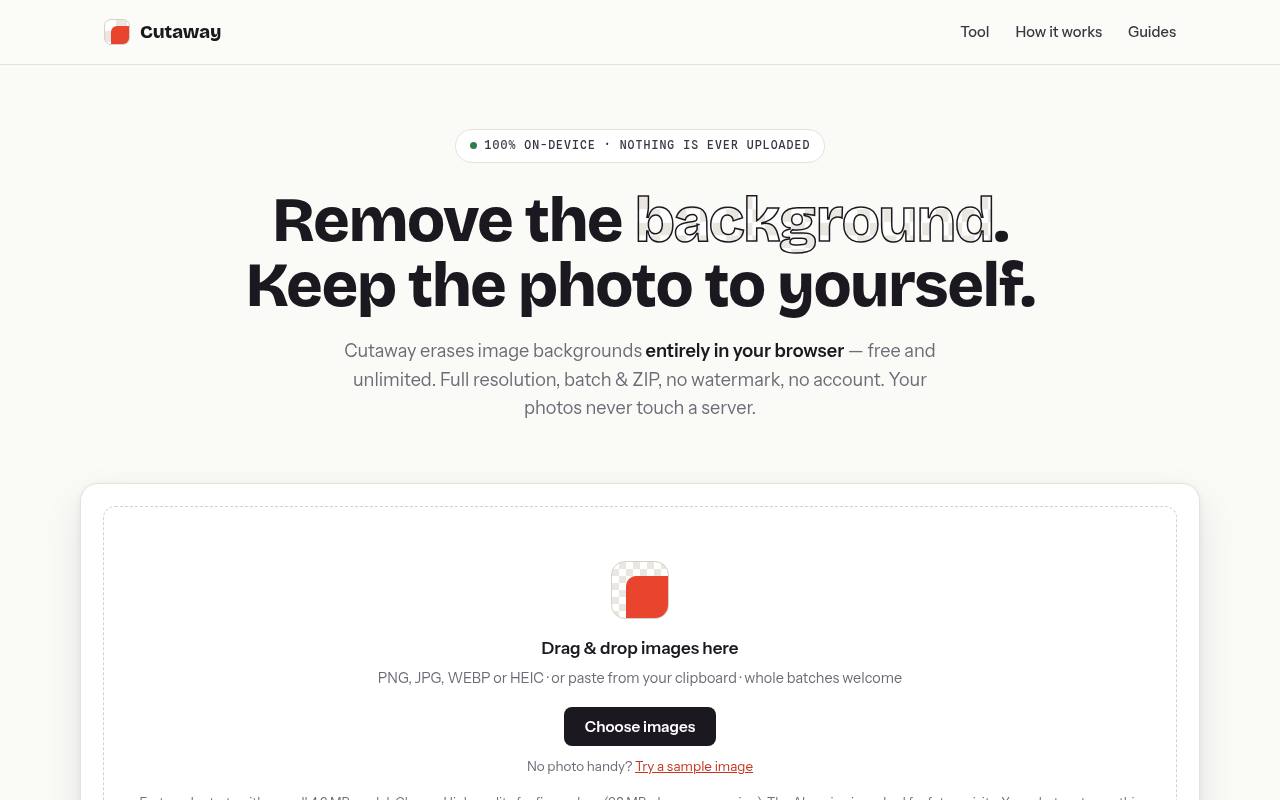
Cutaway advertises original-resolution exports without a paid size tier, watermark, account, or image quota. Processing happens on your device after the AI engine downloads, so available memory and browser capability still matter even though the site states no resolution limit.
Its erase and restore brushes complement edge-fringe cleanup, subject positioning, shadow options, and canvas presets. Download a transparent PNG or collect batch results in a ZIP; choose an opaque format only when you intend to flatten the background. The site explicitly permits personal and commercial exports, subject to your underlying image rights.
- Type
- Local browser app
- Best for
- Unlimited local cutouts with framing and edge adjustments
- License
- Free; personal and commercial exports permitted
- Price
- 100% free
bgcut
Open-source browser and CLI tool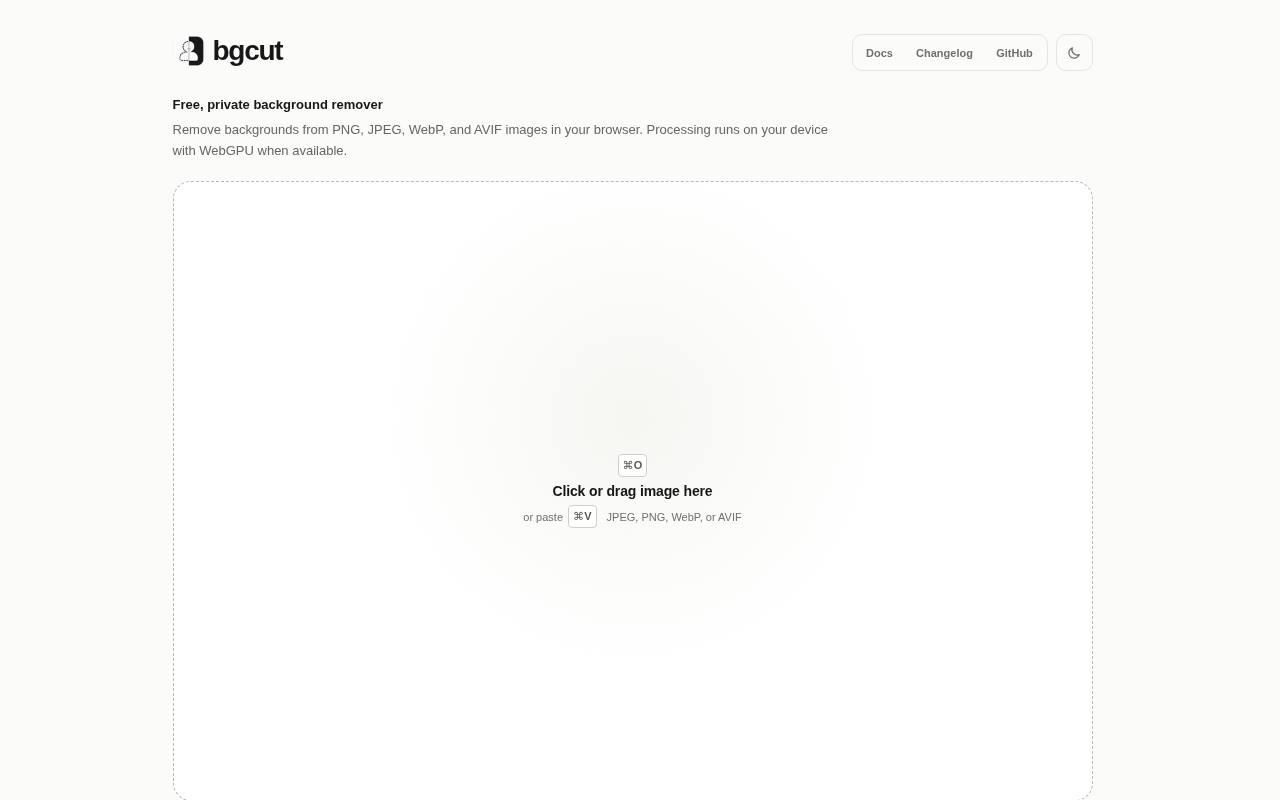
bgcut offers private browser processing for JPEG, PNG, WebP, and AVIF input, with WebGPU acceleration and a WebAssembly fallback. Its documentation explains that the model works at 512 × 512 internally, then maps the matte back to the source dimensions: that working size is not the final export ceiling.
No numerical maximum export size is published in the reviewed documentation; hardware remains relevant. The MIT-licensed implementation also provides command-line and Node.js interfaces, making it appealing when you want to move from interactive checks to automated local processing without adopting a hosted credit system.
- Type
- Open-source browser and CLI tool
- Best for
- Local cutouts shared across browser and developer workflows
- License
- MIT implementation; check model and dependency terms
- Price
- 100% free
Choose by the final image size
Start with the destination, not the upload button. A 0.25-megapixel preview can suit a small personal avatar but leaves little room for cropping or printing. A 2,000-pixel export offers more flexibility for web layouts.
For large originals, consider local tools or a service with an explicit suitable ceiling. Always inspect the saved file’s width and height; a sharp-looking preview panel does not establish the download resolution.
Understand what full resolution actually means
An original-resolution export preserves canvas dimensions, not necessarily every strand of hair. Many tools predict a smaller mask and enlarge that mask over the original pixels.
The output can therefore be large while its boundary remains soft. Judge dimensions and edge quality separately. Likewise, increasing the canvas size does not restore detail missing from a small source photograph or a reduced free preview.
Check personal and commercial permissions
A free background remover does not grant ownership of the photograph you upload. Confirm photographer permissions, stock restrictions, and any relevant releases independently.
Also distinguish service restrictions from image rights: Removal.AI’s free previews and Photoroom’s free plan carry personal-use limitations. For open-source software, inspect model licenses as well as code licenses before using the workflow commercially or distributing it inside another product.
Keep transparency in the right format
Choose PNG with transparency when the isolated subject will move between backgrounds. JPEG cannot retain an alpha channel, so exporting it adds an opaque background. Save a layered project separately whenever masks or selections may need revision.
For delivery, crop excessive empty space without cutting off shadows or hair, and give the file a descriptive name that distinguishes the transparent master from flattened social or marketplace versions.
Repair edges before adding effects
Examine the cutout edge quality against white, black, and a saturated color. This exposes pale halos, leftover background color, and missing dark details that a checkerboard can hide.
Restore narrow gaps and fine strands selectively rather than blurring the entire silhouette. Add a subtle contact shadow only after cleanup; a shadow can ground a product visually, but it cannot repair an inaccurate outline or bring back missing material.
Protect private photos and plan batch work
Prefer local background removal for confidential prototypes, unpublished portraits, or sensitive client material when your privacy requirements rule out uploads. Browser-local tools still download application code and model files, so review their behavior before handling restricted content.
For batches, process a small mixed sample first and inspect each result. Similar filenames, consistent margins, and a separate originals folder make later corrections safer than overwriting the source photographs.
Why do glass and hair still look wrong?
A transparent subject boundary is not always a simple foreground-versus-background decision. Glass, veils, fur, and motion blur mix the subject with the scene behind it. Automatic tools may erase useful reflections or preserve unwanted color.
Try another model, use a softer mask, or reshoot against a cleaner contrasting background. When precision matters, a slower manual correction in Photopea or GIMP can be more efficient than repeatedly accepting imperfect automatic cutouts.